January 18, 2026 | 5 minute read
The CHI Submission Process is Bananas
I'm not typically a fan of articles of interface rants, where people write about how hard to use something is; they are usually not helpful and come off as either "get off my lawn" or "things should not be hard" or "I am not very good at using technology." But here is mine, written because the process for submitting an accepted paper to CHI is bananas.
Step 1
I had a paper accepted to CHI, and I am very happy about it. I received this email, indicating acceptance, that included these very verbose instructions:
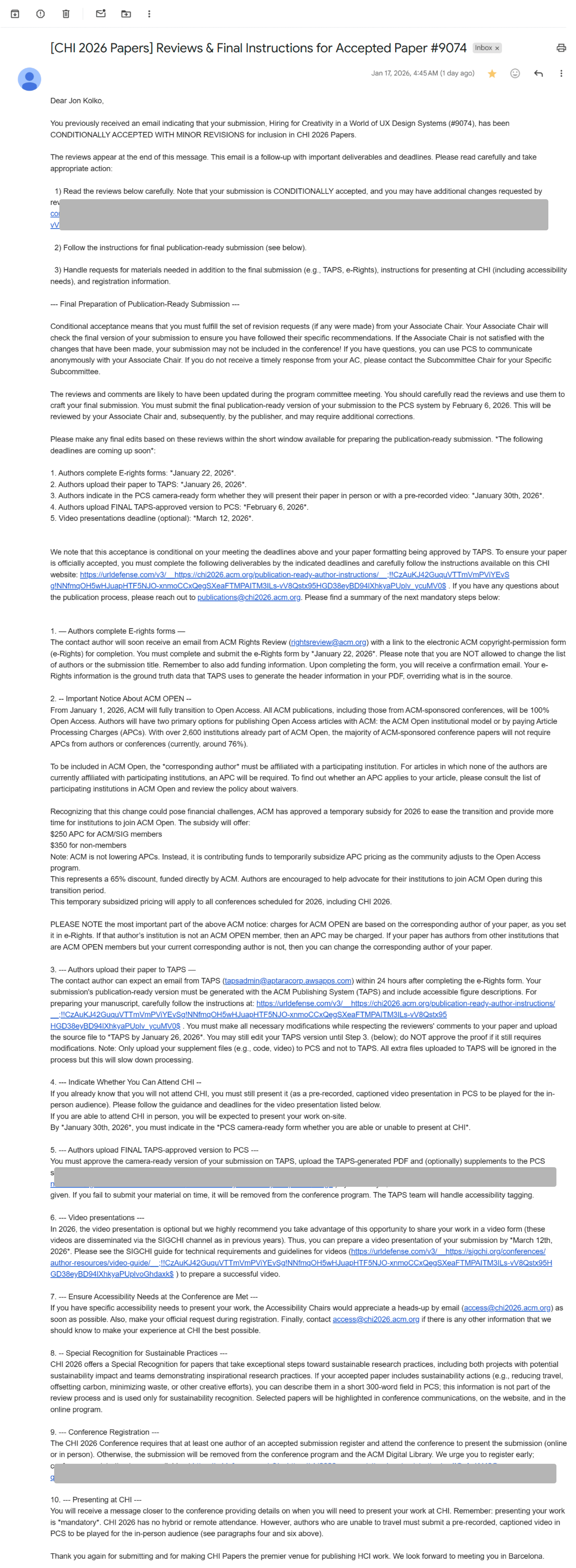
The email instructed that I should "carefully follow the instructions available on this CHI website: https://chi2026.acm.org/publication-ready-author-instructions/"
I clicked the link.
Step 2
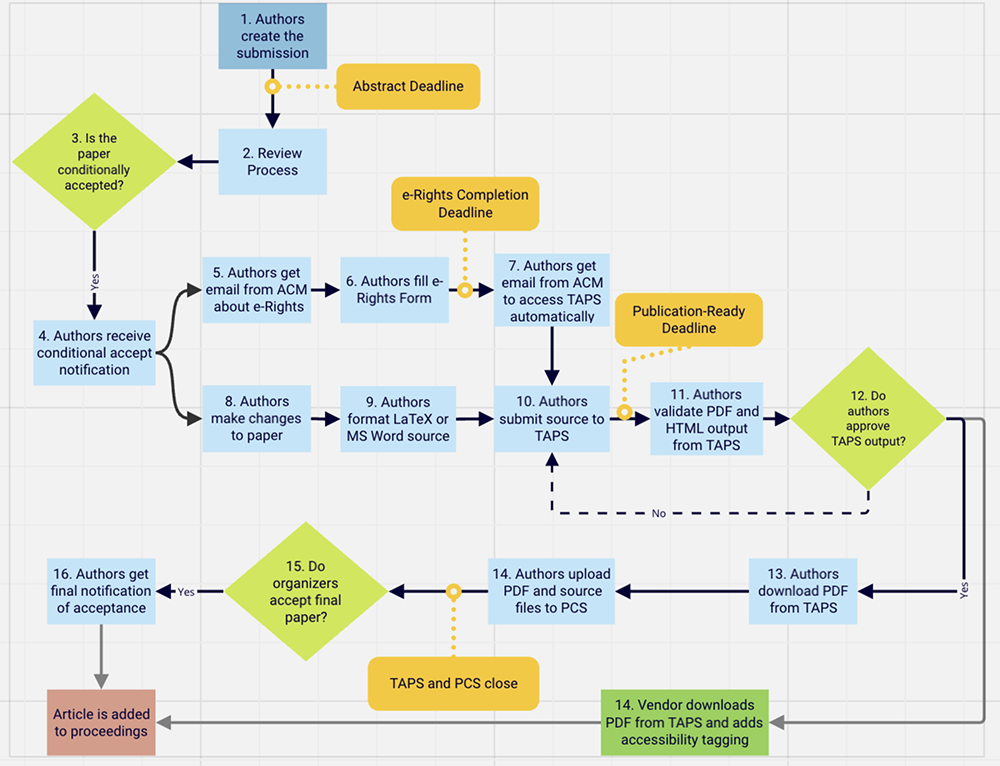
This opened the main CHI website, with a 2800 word instruction guide:

(Please note the helpful flow chart)
Below the chart, it explained:
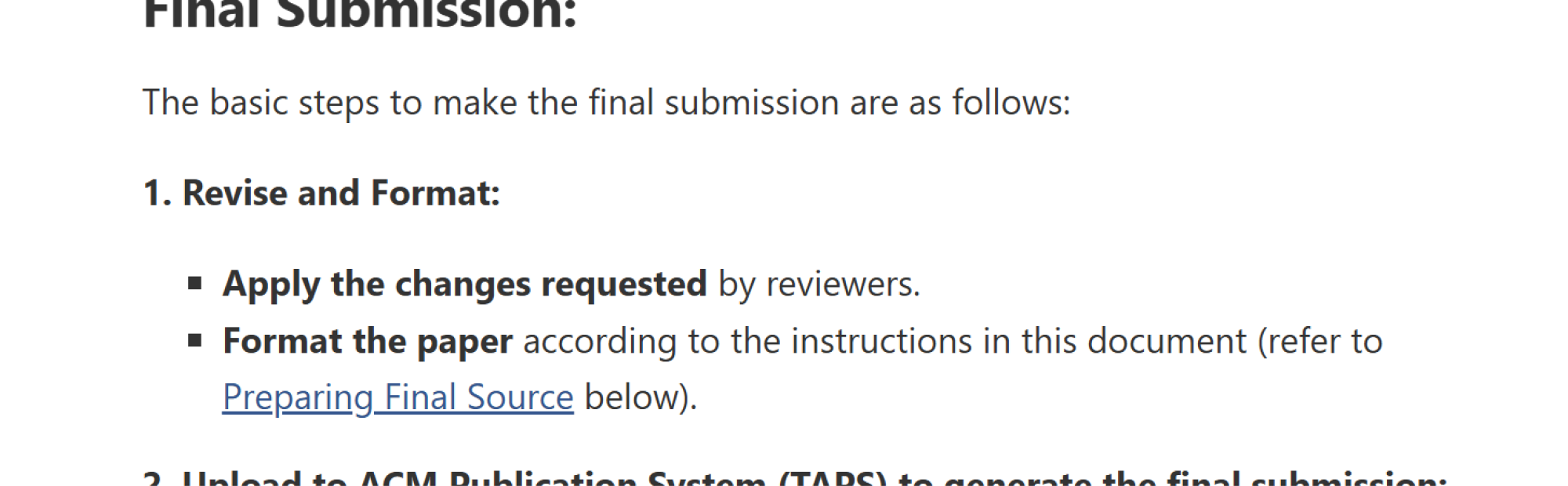
"Preparing Final Source" was an intext hyperlink to an anchor tag. I clicked that, but it did not work (because there were no anchor tags on the page.)
Step 3
Lower on the page was a section called "Preparing the Final Source":
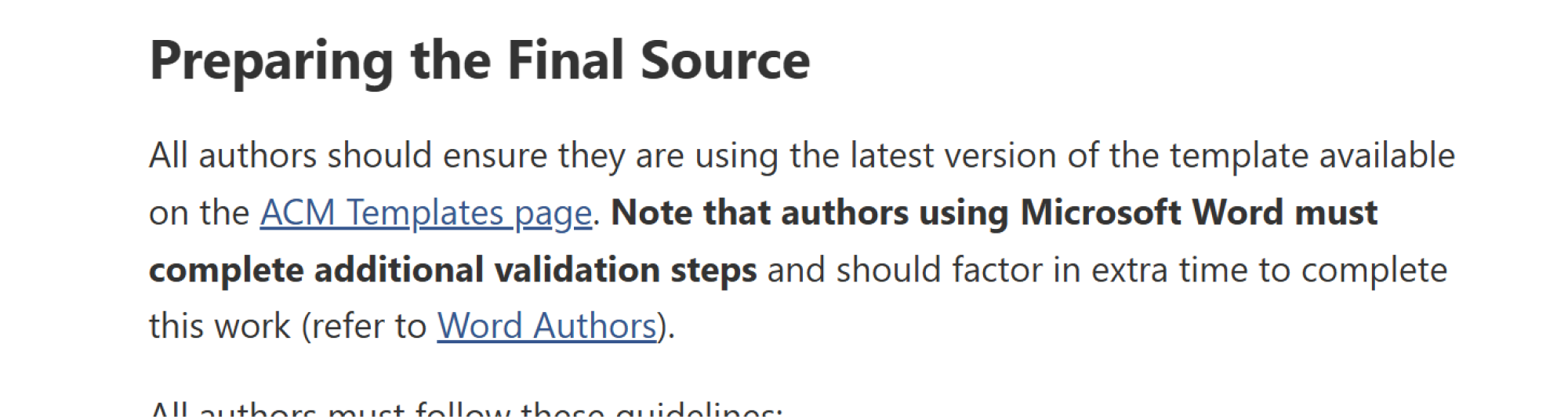
"Word Authors" was another hyperlink to an anchor tag, which I clicked.
Step 4
Clicking the link did nothing. However, there was another link labeled "ACM Templates page," and I clicked that.
A page loaded, "explaining" something called the "TAPS Workflow": https://authors.acm.org/proceedings/production-information/taps-production-workflow
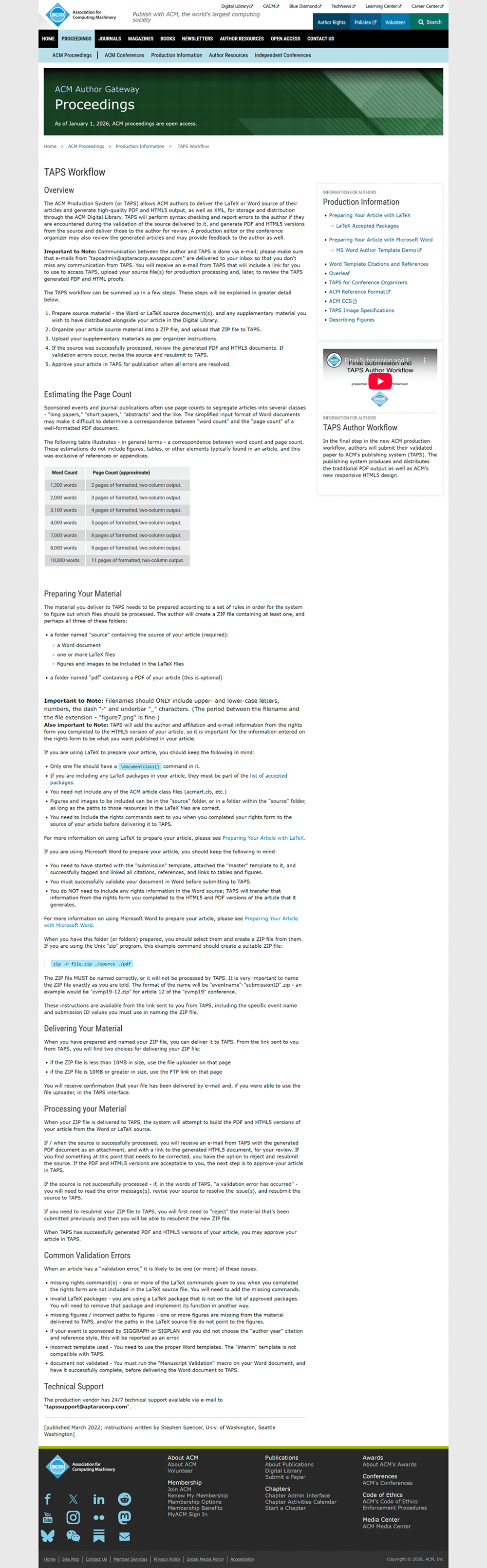
This page did not have any templates on it. However, it did indicate that:
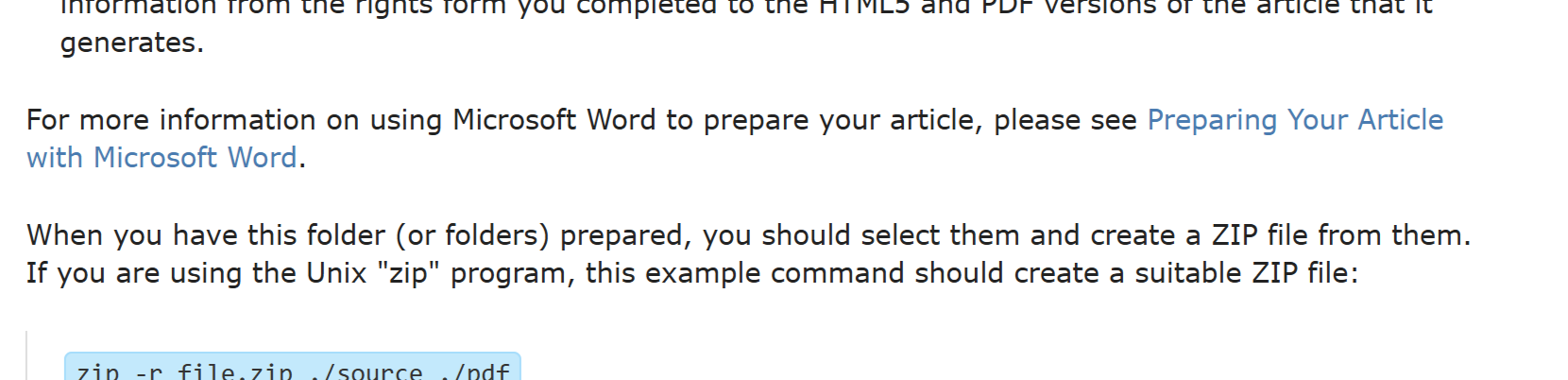
"Preparing Your Article with Microsoft Word" was a link, and I clicked it.
Step 5
The link loaded the page https://authors.acm.org/proceedings/production-information/preparing-your-article-with-microsoft-word.

This page indicated that:
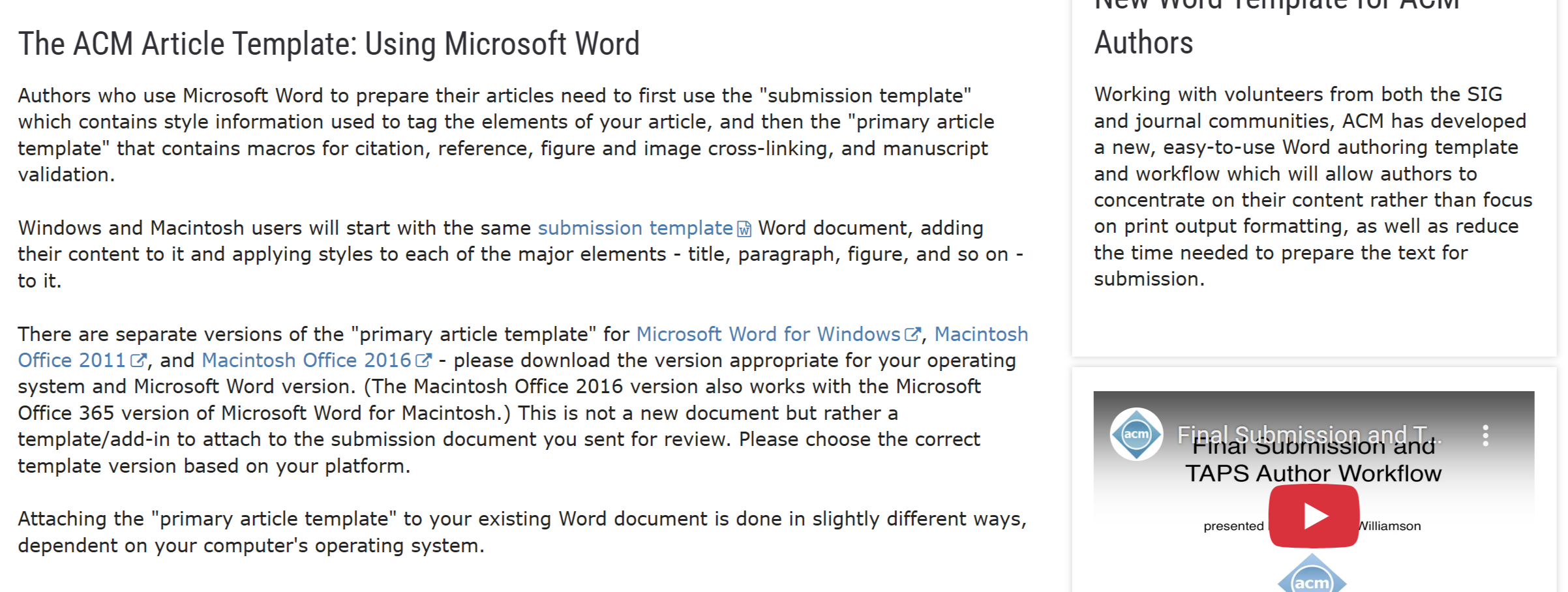
The words "submission template" were a link that downloaded the one-page format that I was instructed to use during initial document submission for peer review.
I clicked the author link, "Microsoft Word for Windows."
Step 6
The link downloaded a zip file called windows.zip. Inside the zip file was a folder called Windows, and a file called acm_master_article_template_instructions:
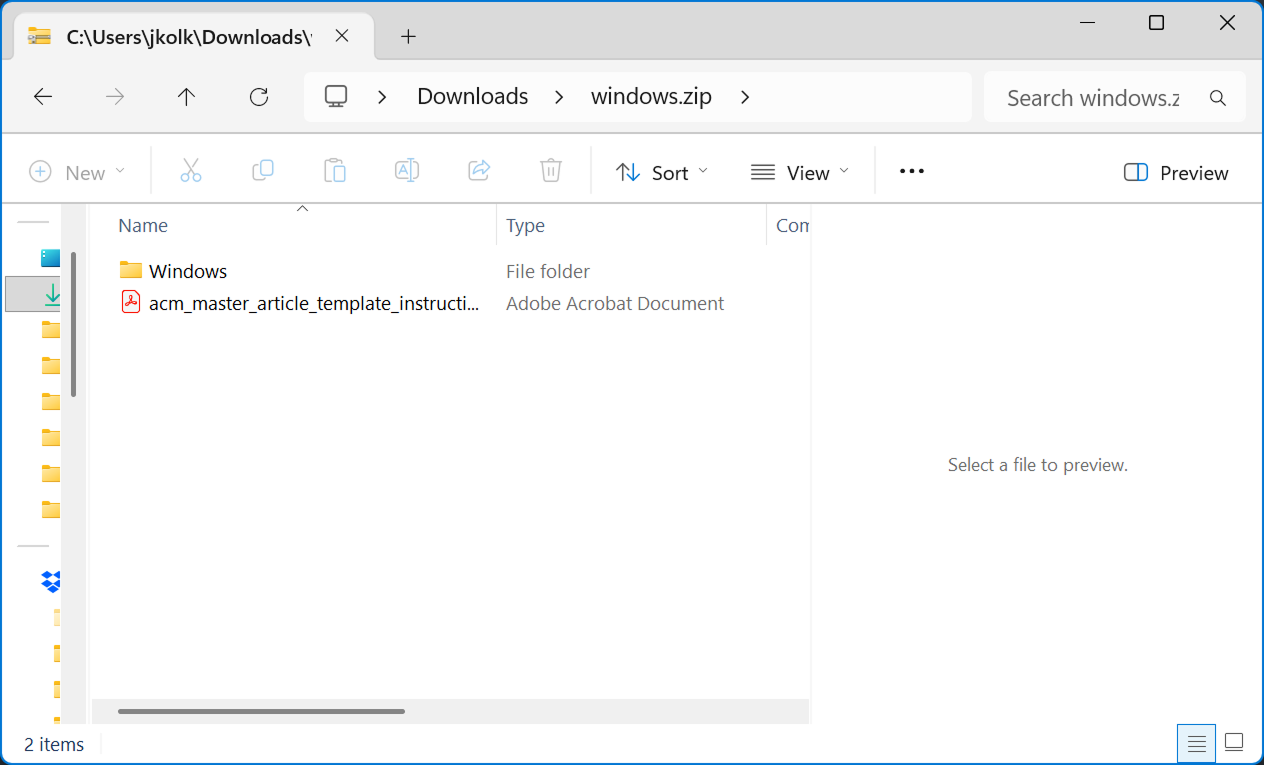
I opened the pdf file.
Step 7
This file was a document called Instructions for Applying the Primary Article Template TO YOUR ACCEPTED ACM SUBMISSION DOCUMENT.

It explained that the author should download the ACM Primary Article Template:

I clicked the link.
Step 8
The link directed to https://authors.acm.org/proceedings/production-information/taps-production-workflow, which I had already visited above.
Below that link, the page explained that the zip file contained a template. To install it, an author needs to open the Add-Ins area of Word. A screenshot that is too small to see and has no accessible text was shown. Another was shown below, with "MathType Commands 6 For Word 2013.dotm." highlighted:
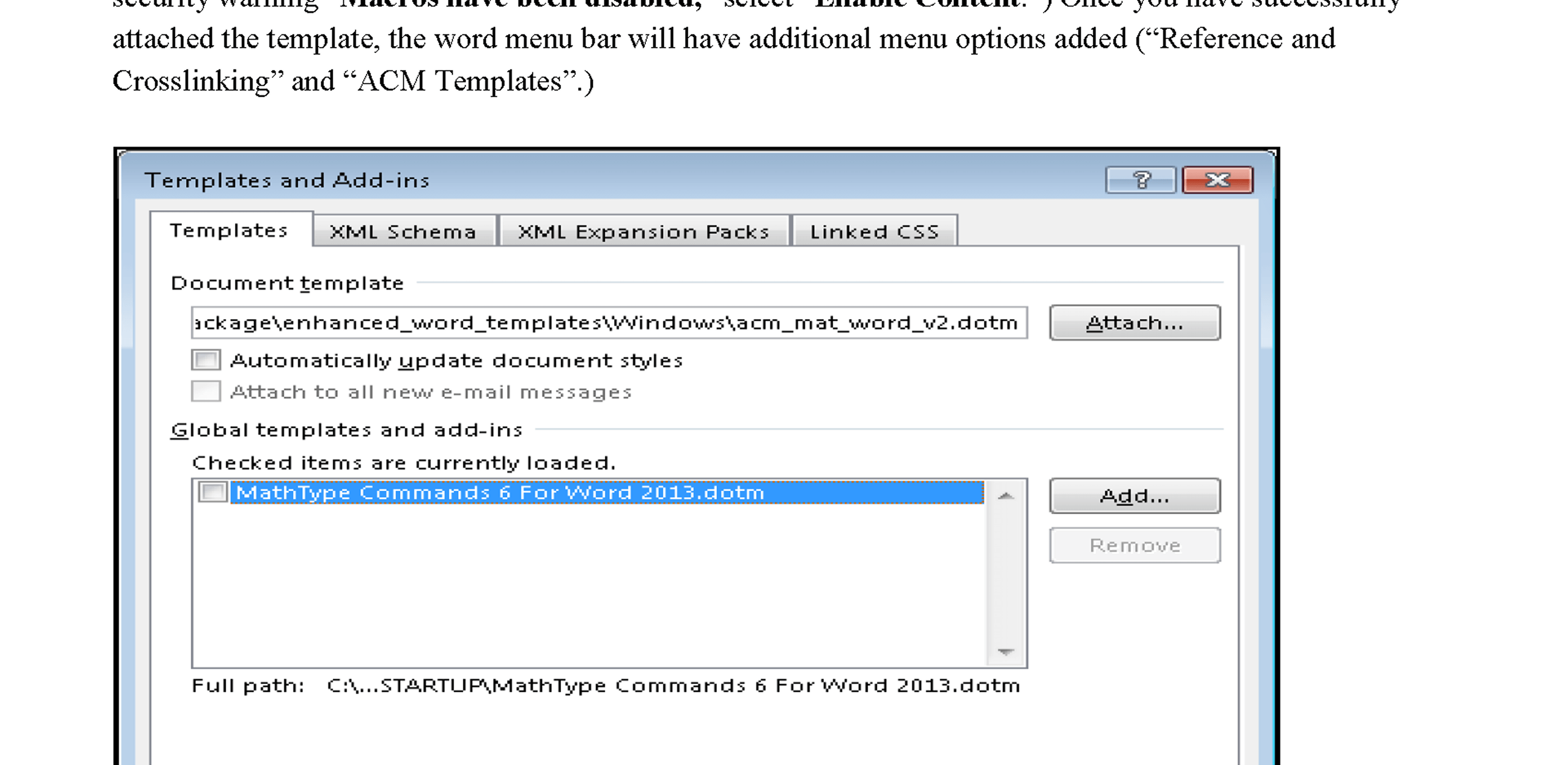
The zip file contained a file called acm_mat_word_v2.dotm, which is a Word Template. I opened the file.
Step 9
A blank document in Word opened, with a red banner that explained Word has found a "SECURITY RISK. Microsoft has blocked macros from running because the source of the file is untrusted." There was a button in the banner called Learn More.

I clicked the button.
Step 10
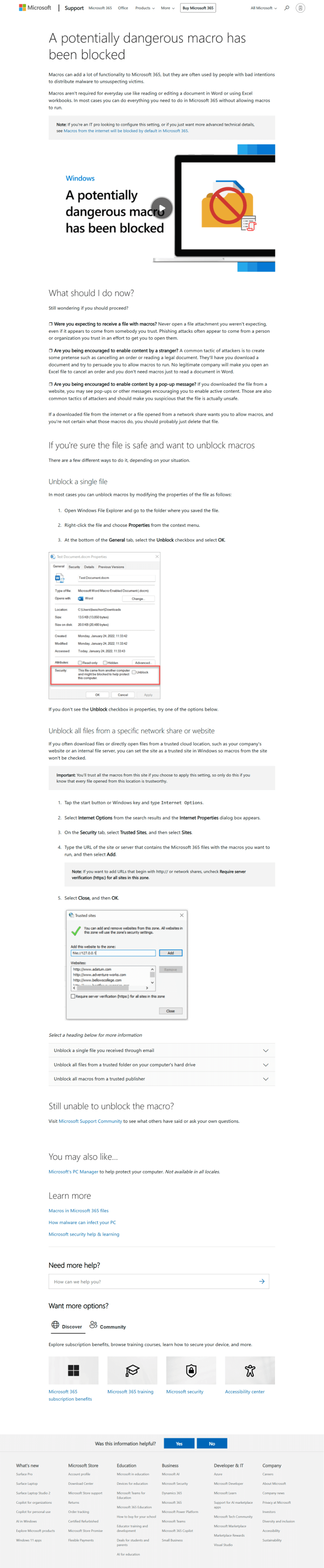
My browser opened, and displayed the site https://support.microsoft.com/en-us/topic/a-potentially-dangerous-macro-has-been-blocked-0952faa0-37e7-4316-b61d-5b5ed6024216
Step 11
I scrolled down, and saw that I could unlock the file that was downloaded by right-clicking it, and clicking Unblock next to the Security message. I followed those instructions:
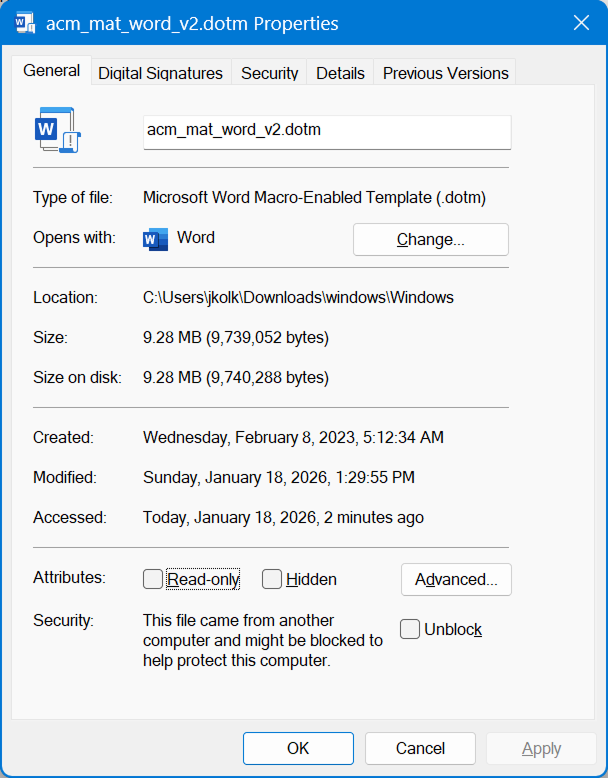
I clicked the checkbox, closeed the inspector, and opened the .dotm file again.
Step 12
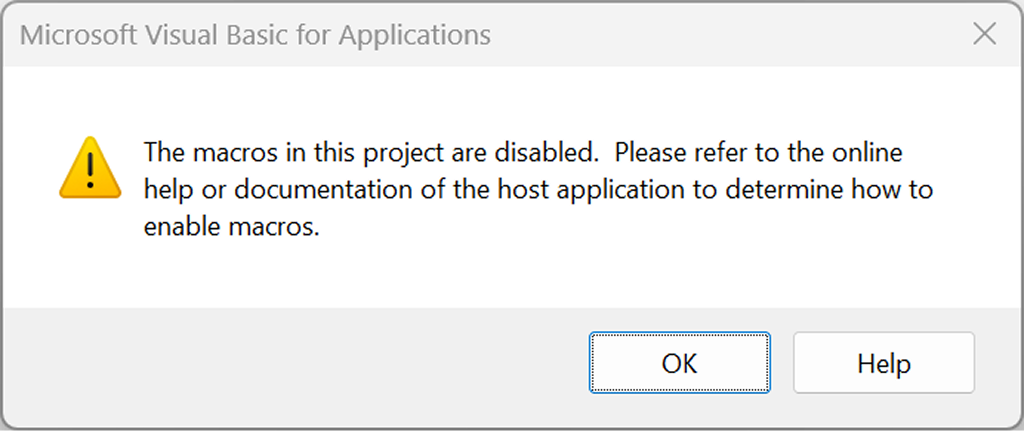
The file opened again, but this time it said "The macros in this project are disabled. Please refer to the online help or documentation of the host application to determine how to enable macros."
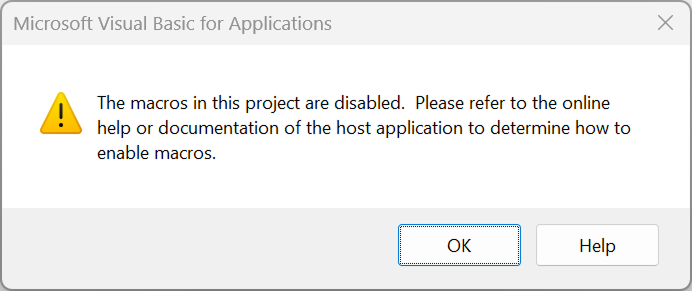
I clicked OK.
Step 13
A blank file loaded, this time with a yellow indicator that explained Word had a "SECURITY WARNING. Macros have been disabled."

There was a button labeled Enable Content, and I clicked the button.
Step 14
The banner went away, leaving a blank document. I copy and pasted my accepted paper into the document.
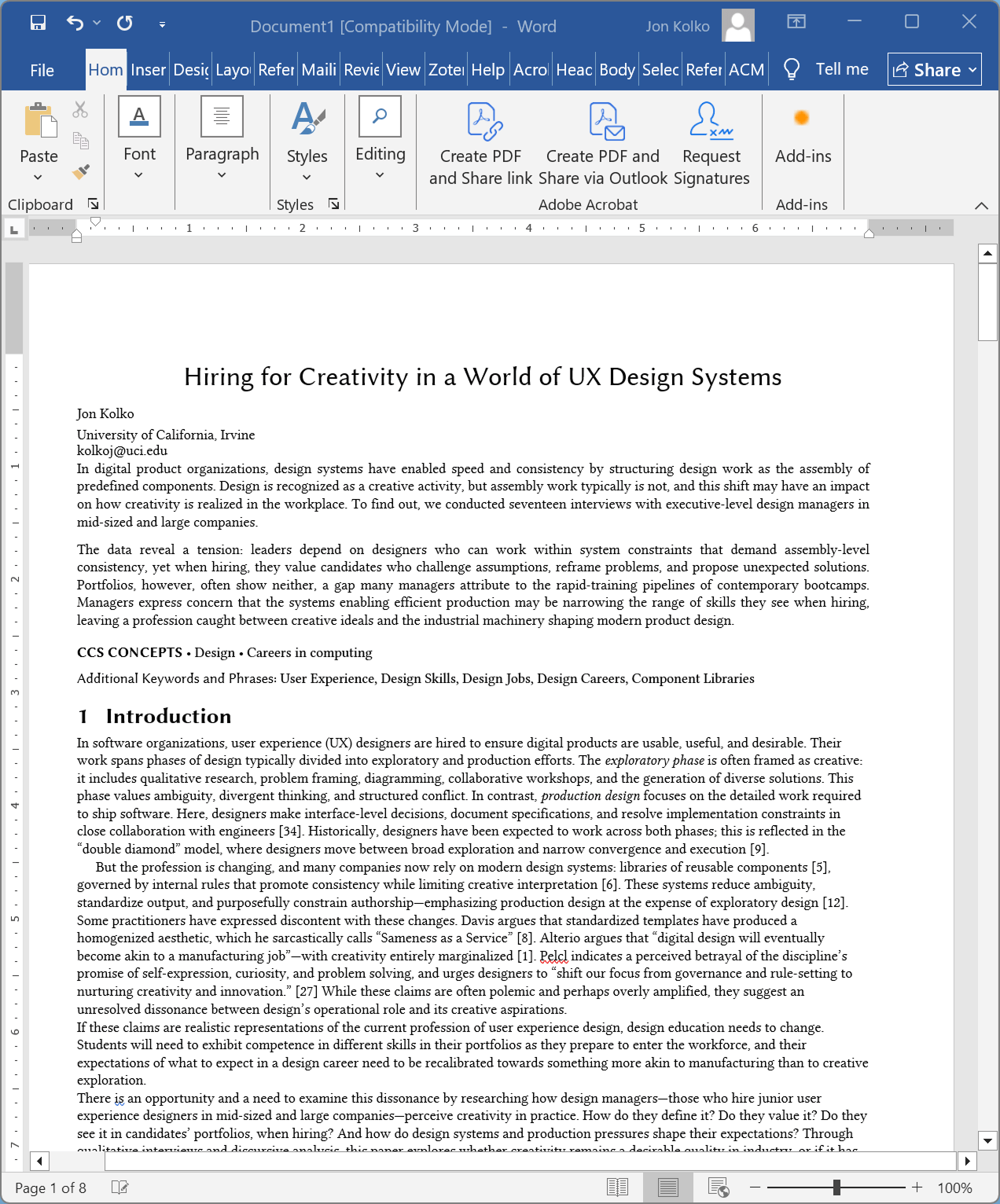
Now, the document was there, but not in the two-column format that I would expect. I was (and am) 100% sure that I did this wrong, and so I have given up.
The next step appears to be trying LaTeX, a process that I am not thrilled about.